
Review and apply an Alæc operation in Word
Inspect the target, risk, and proposed action before requesting a document change.
In this article
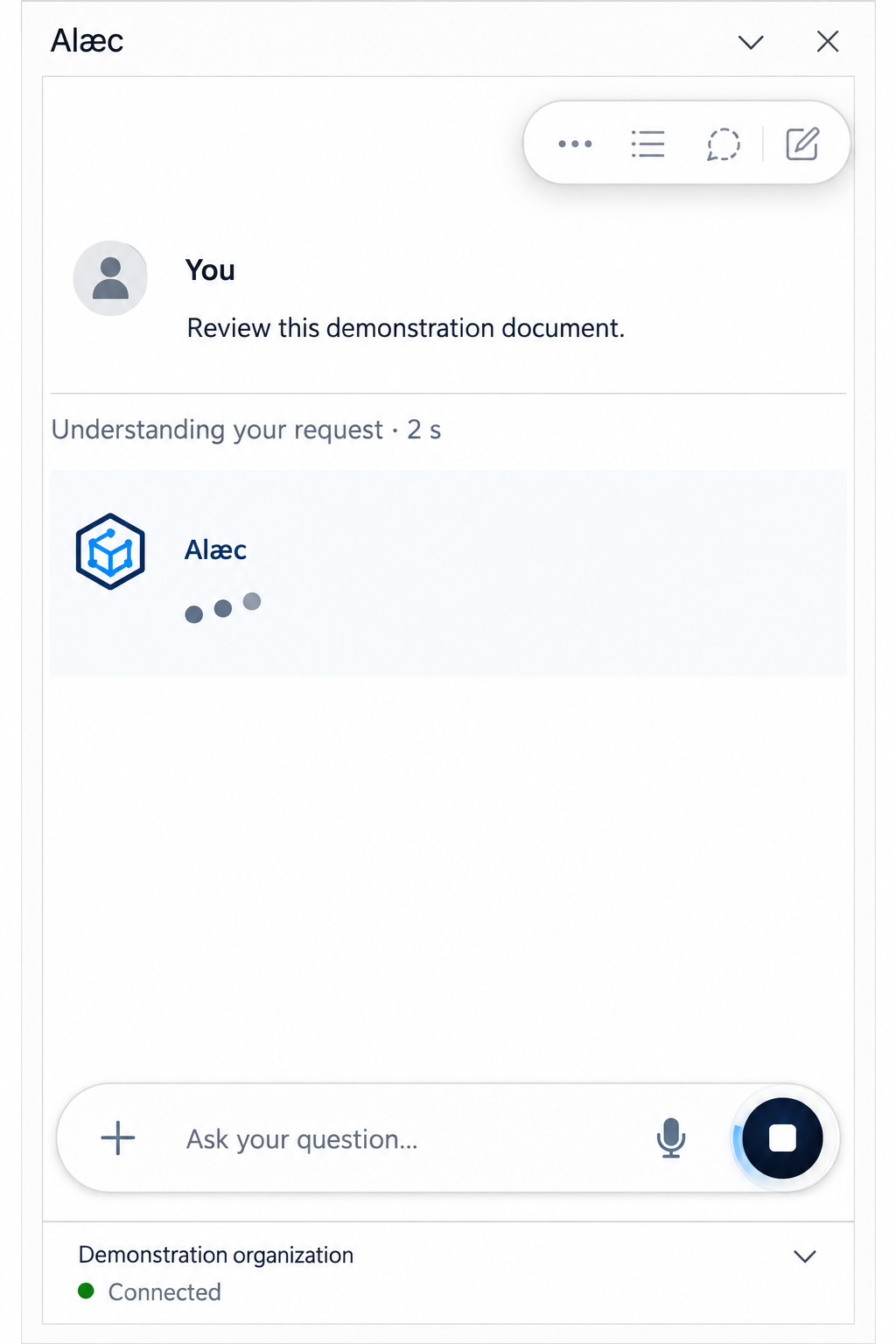
Read the plan and verify its result
- Verify that the stated host is Word and that the active document is correct.
- Verify the target, such as selection, cursor, document body, or anchored range.
- Inspect the proposed action, reason, risk level, and number of affected ranges.
- Review the proposed text, comment, formatting, or structured content.
- If the target, scope, or result is ambiguous, inspect the document before requesting another change; do not assume a plan is waiting for approval.
Interpret the result
- Succeeded
- The operation was applied. Still verify the document and its layout.
- Failed or skipped
- The change was not applied as expected. Read the message before retrying.
- Target not found or ambiguous
- The passage cannot be determined safely. Select it again and request a new plan.
- Stale selection
- The selection changed after the plan was created. Use the offered recovery or restart with current context.
- Unsupported operation
- The requested action is not available for this combination of client, target, or content.
Verify in Word
Find every changed area and compare it with the plan.
Check affected text, styles, lists, tables, images, comments, and breaks.
Use Undo in Word if the immediate result is wrong and that action is still safe.
Save only after completing the review.
A useful review sequence
Before requesting a change, compare the proposed operation with your original request. Inserting after a selection, replacing a selection and changing document formatting have different effects. Keep the selection stable while reviewing. If the selected passage changed, use the offered recovery or request a new plan rather than forcing the old target.
After application, inspect the affected passage and its surroundings: paragraph spacing, list numbering, table widths, headings and page breaks. Save and reopen important documents to verify that the result persists. For an unexpected change, use Word’s undo when appropriate and inspect the document before trying again.
Advanced tips
- Use a short demonstration passage to confirm an unfamiliar operation before applying it to a long deliverable. Check the actual host result, not only the chat response.
- Keep the source, requested change and reviewed result distinguishable. If the active document or email changes, confirm the context again before applying anything.
- Ask for one structural change at a time when the document has complex sections or tables. A successful insertion receipt does not certify professional content or final pagination.