
Get started with the Alæc add-in in Word
Open the pane, confirm sign-in and context, then start a conversation tied to the active document.
In this article
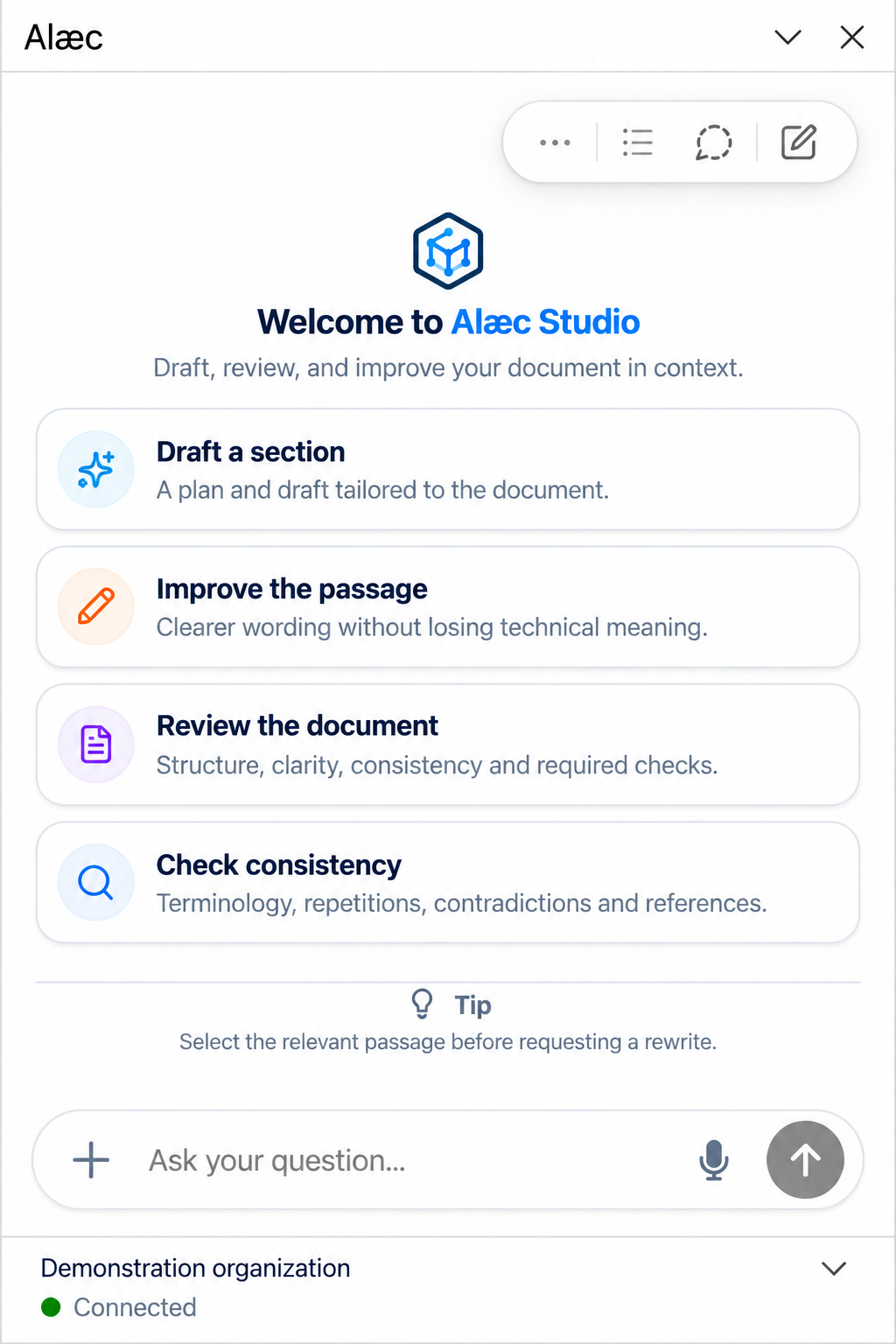
Open and verify the pane
Open the Word document you want to use.
Open the Alæc add-in from the ribbon or command deployed by your organization.
Wait for authentication and context loading to finish.
Verify the account and organization shown in the pane footer.
Verify the document and, when applicable, the active selection before writing your request.
What the pane contains
- A conversation thread and request composer.
- Document and selection context the add-in can read.
- A startup feed when suggestions are available.
- Operation plans and results that require your review.
- The account and organization context footer.
Choose document context deliberately
A question about the document, a request about selected text and an operation that changes the document are different tasks. State which one you want. Select a passage for a narrow rewrite and keep the document active while the task reads its context. Before requesting an operation, check the target and expected change.
Advanced tips
- Use a short demonstration passage to confirm an unfamiliar operation before applying it to a long deliverable. Check the actual host result, not only the chat response.
- Keep the source, requested change and reviewed result distinguishable. If the active document or email changes, confirm the context again before applying anything.
Was this article helpful?