
What is Alæc Studio?
Understand how conversations, projects, workspaces, and notifications support structured, verifiable work.
In this article
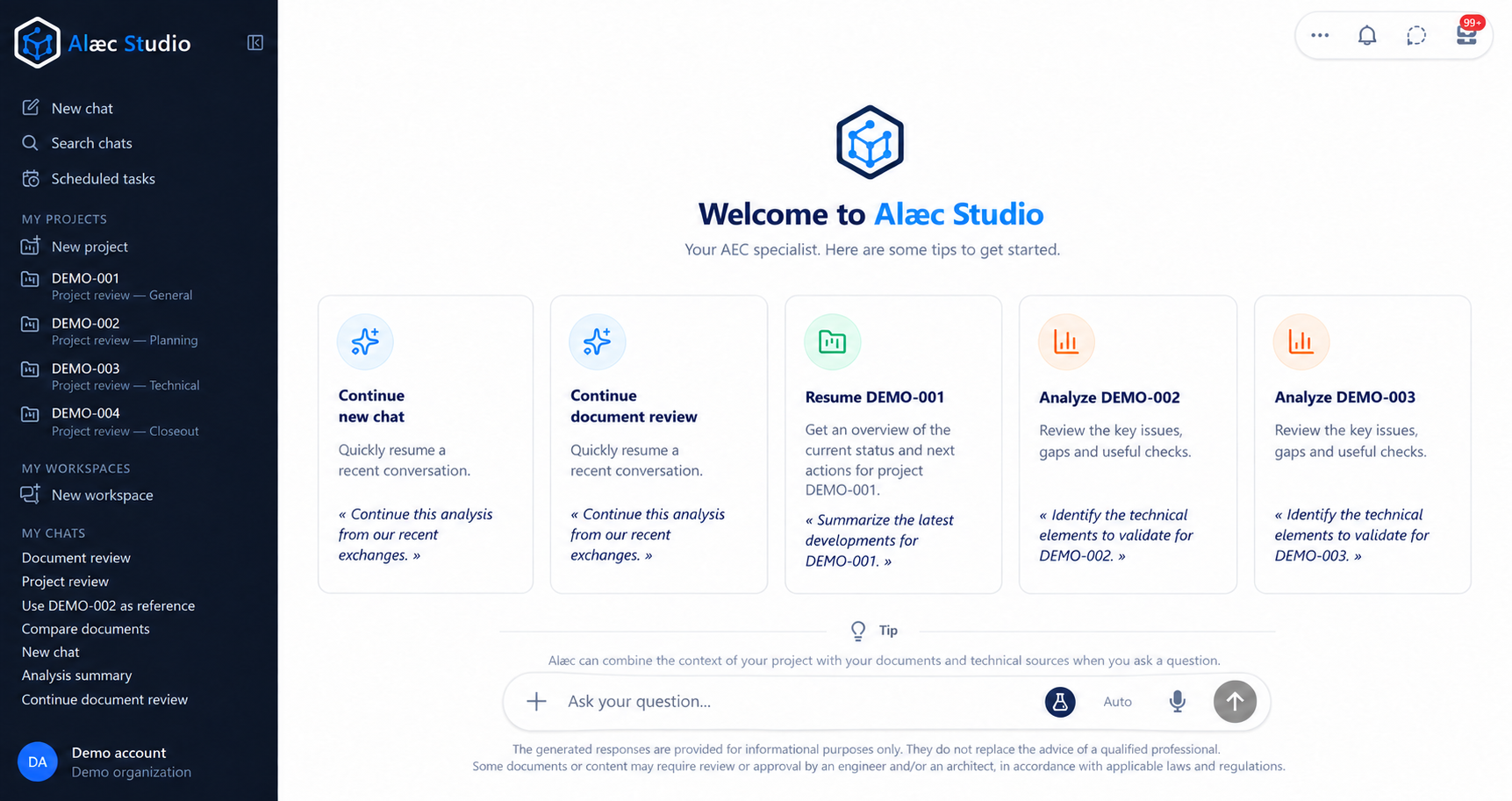
Alæc Studio is the main workspace where you interact with Alæc and organize information relevant to your assignments. It brings together conversations, projects, workspaces, and notifications to help you move from a question or need to a result you can verify.
Main capabilities
- Conversations
- Ask a question, refine your request, and continue the analysis in an exchange with a clear subject.
- Projects
- Maintain structured assignment information, including organizations, collaborators, keywords, parameters, and documents, when those features are available.
- Workspaces
- View the workspaces your account can access and the information presented for each one.
- Notifications
- Track background processing and open a result or document when it becomes available.
How the concepts work together
Each part of Studio has a distinct role. Your account and organization determine what you can see; a conversation keeps the thread of one objective; a project space structures lasting assignment information; a workspace represents an authorized collaboration context; and a notification tells you that background processing is ready. None of these elements replaces the others.
- Account and organization
- They determine your working identity, permissions, and the projects, workspaces, or features you can see. Verify them before adding information.
- Conversation
- It groups messages related to one objective. Earlier exchanges can influence later responses; start a new conversation when the subject or confidentiality level changes.
- Project space
- It brings together structured assignment context, such as organizations, collaborators, keywords, parameters, and documents. A saved conversation can be associated with one or more project spaces when this command is available.
- Workspace
- It groups collaboration resources and conversations your account can access. Visible information and collaboration options depend on your permissions and environment configuration.
- Notification
- It indicates that processing or a document is ready to review. It does not replace the original conversation or verification of the result.
A typical workflow
Confirm the displayed account and organization so you are working in the correct environment.
Open a conversation that already covers the same objective, or start a new one for a separate subject.
Review the relevant project space and, when the feature is available, associate it with the conversation to make the assignment relationship explicit.
Write the request with the objective, useful facts, constraints, intended audience, and expected result format.
Review the response, ask follow-up questions in the same conversation, and inspect offered sources or documents when available.
If processing continues in the background, monitor notifications and open the result when it is ready.
Compare names, dates, amounts, requirements, and references with official systems before using or sharing the result.
What context retains — and what you should repeat
- A conversation retains the thread of its messages, but it does not guarantee that every earlier fact remains accurate or applicable.
- A project-space association makes the assignment relationship visible; it does not replace a clear request or verification of project data.
- New information, a correction, a deadline, or an important constraint should be stated explicitly in the current request.
- A temporary chat does not appear in normal history. Use a saved conversation when you need to find and continue the work later.
- Permissions can change. When a project, workspace, or command is missing, verify the current account and organization.
How Studio fits into a task
Confirm that you are using the correct account and environment before adding information.
Open an existing conversation when it covers the same subject, or start a new chat for a separate need.
Describe the objective, useful context, constraints, and expected result format.
Read the response, review sources when they are offered, and clarify missing elements in the same conversation.
Verify and obtain approval for the result under your organization’s rules before using or sharing it.
What Studio does not replace
Alæc can help you find, summarize, and structure information, but it does not replace original documents, your organization’s official systems, quality controls, or professional judgment. Names, dates, amounts, units, technical requirements, and recipients must always be verified before use.
Practical guidance
Start with a saved personal conversation for work you need to revisit. A workspace groups collaboration resources, while a project space records the assignment. Choose the appropriate scope before attaching material; opening a project and starting a chat are separate actions.
Advanced tips
For a complex assignment, separate discovery, drafting and verification into explicit requests. Identify the source version and expected deliverable at each stage so a later correction does not silently change the basis of earlier work.