
Understand the Alæc Studio interface
Identify the main areas of the application before you begin.
In this article
The interface is organized around four areas: the sidebar, the central workspace, the composer, and the controls in the upper-right area.
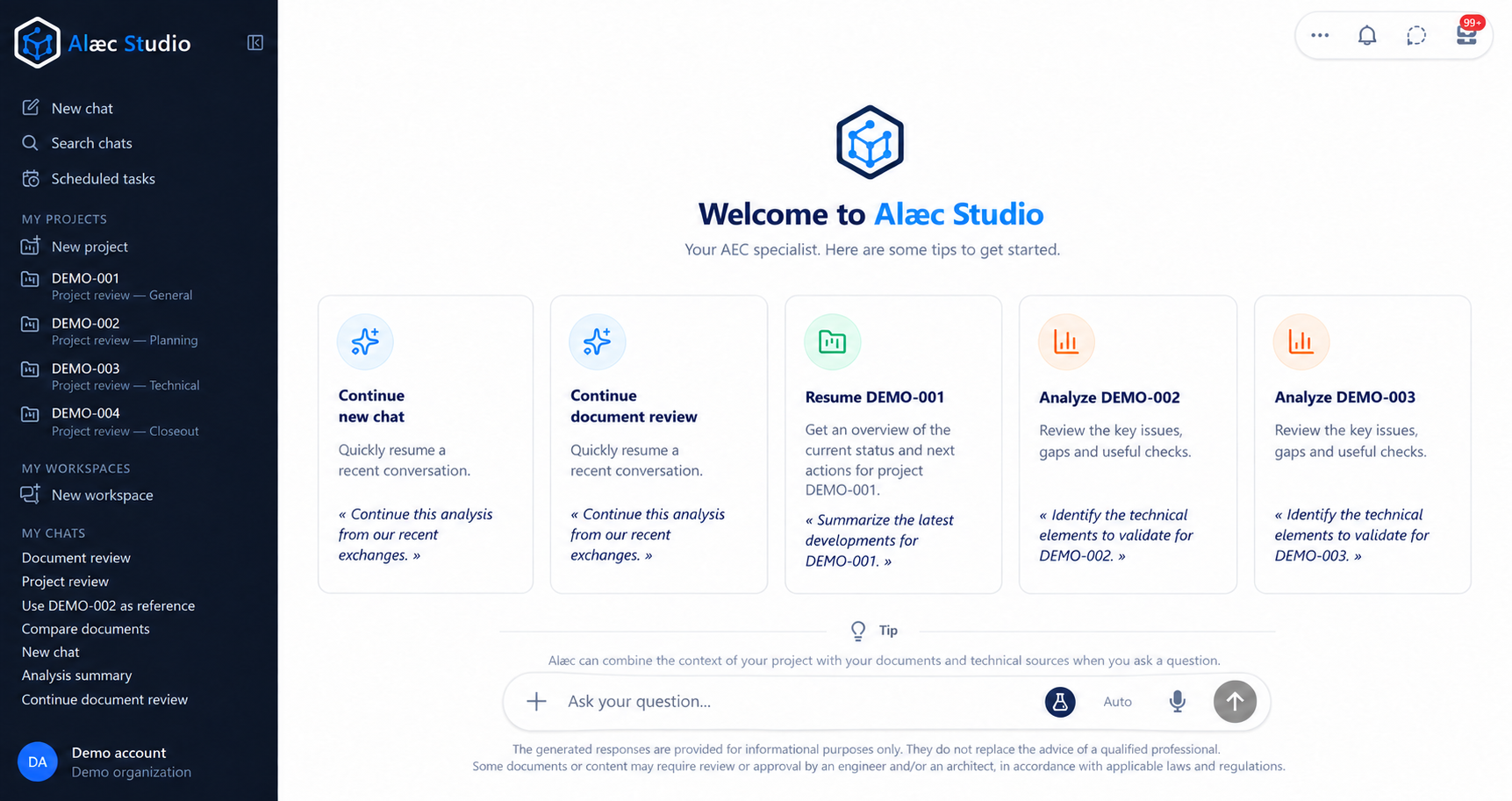
- Sidebar
- Provides access to conversations, projects, and workspaces visible in your environment.
- Central workspace
- Displays the home screen or the active conversation.
- Composer
- Lets you write and send a request to Alæc.
- Top controls
- Include conversation modes and the notification inbox.
How the areas work together
Use the sidebar to choose the chat, project, or workspace that matches your objective.
Confirm in the central workspace that the correct item is open before reading or adding information.
Write the request in the composer with the displayed conversation context in mind.
Monitor the top controls when a mode, notification, or action changes the state of the work.
Practical guidance
The active workspace can show a conversation, scheduled tasks, a project or collaboration settings. The conversation controls apply to the chat view; returning from a project does not mean that its information has been submitted as a message.
Advanced tips
Before sending, read the conversation title and any project or workspace indicators together. If the central view is not the expected one, return through navigation and verify the context rather than relying on a remembered screen position.