
Use the notification inbox
Find completed documents and background results.
In this article
The notification inbox displays items that become available after certain Alæc operations. A badge on the icon indicates the number of items to review.
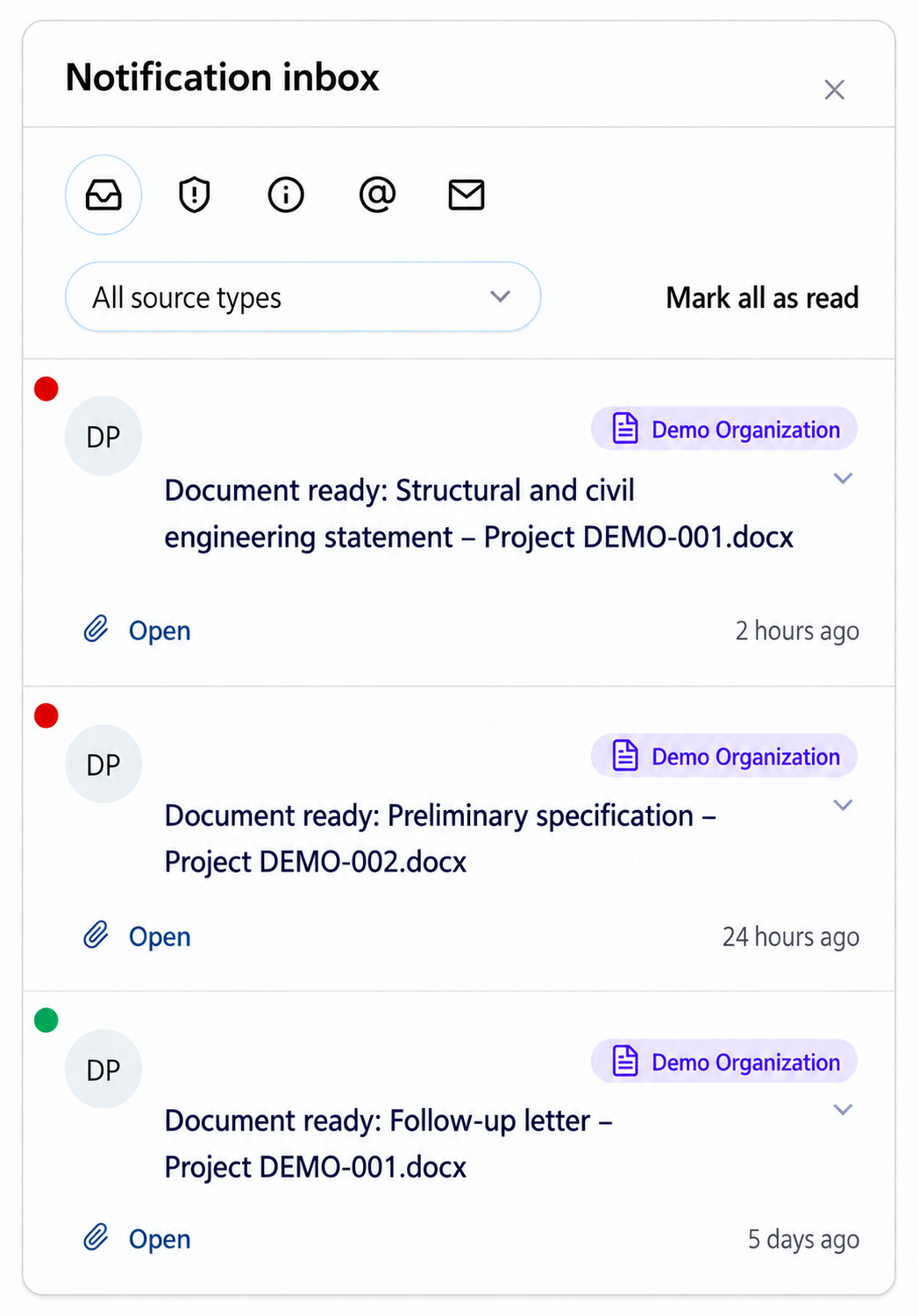
Open the inbox in the upper-right area.
Find the item you want.
Use category or source filters when the list contains several results.
Select “Open” to access the result.
Mark items as read after reviewing them when that command is available.
Read a notification correctly
- Source
- Identify the conversation, project, or process that produced the result before opening it.
- Status
- Distinguish an item that is processing, ready, failed, or requires intervention when this information is shown.
- Date and time
- Use them to distinguish similar processes and find the corresponding request.
- Action
- Opening a result lets you review it; it does not mean the result has been verified, approved, or sent.
After opening
Confirm that the result matches the correct request and context version.
Verify the content, sources, recipients, and produced files.
Return to the original conversation when clarification or correction is needed.
Track your review separately: opening a result or acting on a notification can mark it as read before review is complete.
Practical guidance
Combine category, profile and read-state filters to find the intended item. Expand its details and inspect the available action. Opening a result or processing an action can mark the notification as read automatically; read status records inbox handling, not approval of the underlying document or decision.
Advanced tips
Before dismissing several notifications, review the selected items and any pending response warning. Dismissal and marking as read do not complete the business action requested by an invitation or approval notification.