
Get started with the Alæc add-in in Outlook
Open the pane on the active email, confirm context, then use the Overview, Project, Files, and Chat tabs.
In this article
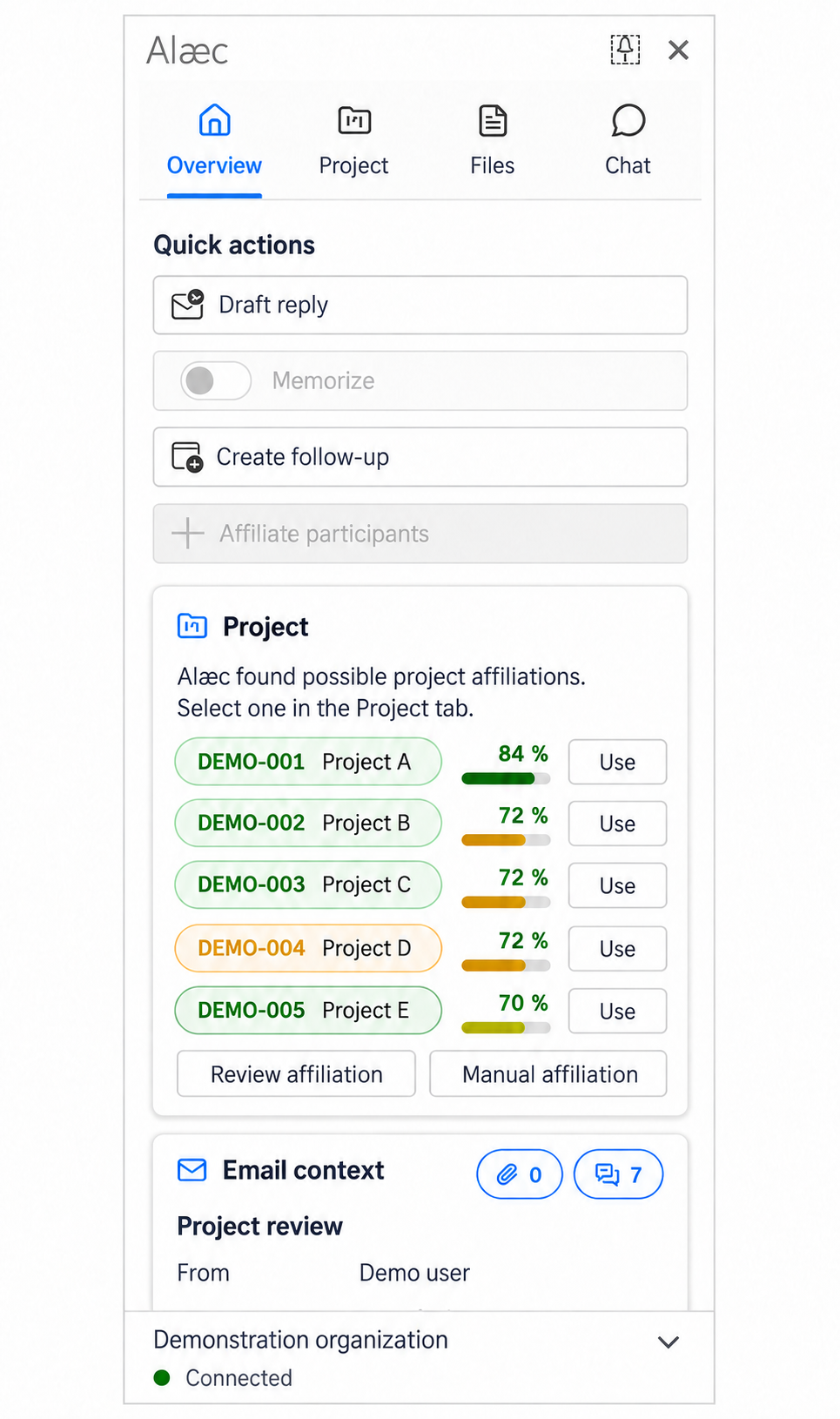
Verify the active item
Open the email to analyze or the relevant compose window.
Open Alæc from the deployed Outlook command.
Wait for context analysis and verify the displayed subject, sender, or recipients.
Confirm the account and organization in the context footer.
Change tabs only after verifying that the pane still matches the active item.
Purpose of the four tabs
- Overview
- Summarizes actions, detected project, email context, participants, and attachments.
- Project
- Lets you confirm, search, create, or remove a project affiliation when authorized.
- Files
- Shows attachments, project documents, and available recent correspondence.
- Chat
- Opens a conversation using authorized email and confirmed-project context.
Verify the email before using its context
The active email determines what the pane can analyze. When you select another message, wait for its analysis to replace the previous state. Check the subject, project and participants before asking for a summary or a draft. Read and compose modes offer different actions; a control absent in one mode is not necessarily an authentication failure.
Advanced tips
- Use a short demonstration passage to confirm an unfamiliar operation before applying it to a long deliverable. Check the actual host result, not only the chat response.
- Keep the source, requested change and reviewed result distinguishable. If the active document or email changes, confirm the context again before applying anything.