
Create, edit, and export images
Prepare an image request, refine a completed image, compare versions, and export the result you actually reviewed.
In this article
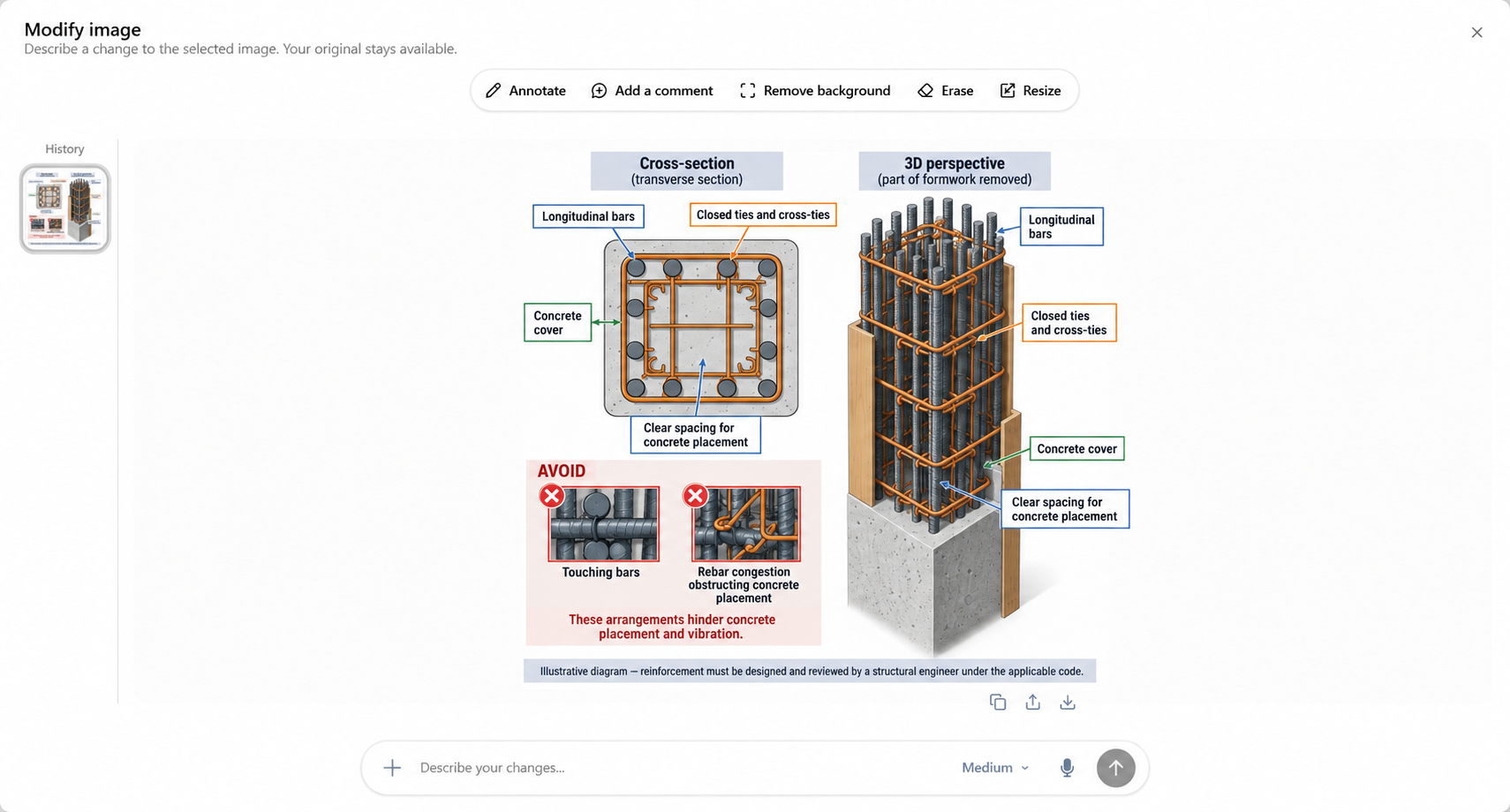
Image creation and image editing are separate from adding a photograph for analysis. State explicitly whether you want a new illustration, a change to an existing image, or an explanation of a photo. These tools depend on your organization’s configuration; an attachment button alone does not establish that generation is available.
Prepare the first version
Open a conversation you can return to. Describe the subject, intended use, composition, style, required text, and elements to exclude. For a project illustration, distinguish confirmed facts from visual suggestions.
If you attach reference images, use files you are authorized to process and explain the role of each reference. Wait for upload to finish before submitting.
Send the request once. Follow the image operation’s status and wait for a completed preview. A pending card or an acknowledgment is not a finished image.
Inspect the full image before using it: labels, proportions, unwanted details, faces, and technical plausibility. A generated illustration is not a dimensioned drawing or an engineering validation.
Refine a completed image
Open the completed image or its Edit action. Select the intended version in the image history before drawing or writing instructions.
Use the available pen, shapes, text, comments or mask to identify the change. Explain what must remain unchanged. Undo and redo apply to your annotation edits; changing versions can ask you to discard unsent work.
Choose the offered size, background and quality settings. Add reference photos only when the editor offers them; accepted formats are PNG, JPEG and WebP, with up to four references and 25 MB per file, subject to the available options.
Finish any text or comment being edited, describe the requested change, then submit. Wait for the new operation and compare the result with the source version.
Export and troubleshoot
Use the copy or download action for the image currently displayed. Exporting from the editor can include visible artwork; inspect the exported file to ensure you selected the intended version. If editing tools fail to load, use their refresh action. If a source image is unavailable or an edit fails, keep the original and read the error before submitting again.
Advanced tips
- Change one visual objective at a time: first composition, then materials or colors, then labels. This makes it easier to identify which request introduced an unwanted detail.
- Example: “Keep the camera angle and building outline. Replace only the highlighted cladding with pale wood. Do not add signage or alter the windows.”
- Keep the source image and a separately named approved export. An image in a conversation does not automatically become a shared project-media library item.